Hardware Preparation#
A Windows host with STM32CubeProg installed;
ST-LINK Downloader;
Target board to be programmed: Type-C to CANFD communication board;
Connection wires (SWD interface: SWCLK, SWDIO, GND, optional 3.3V power supply wire).
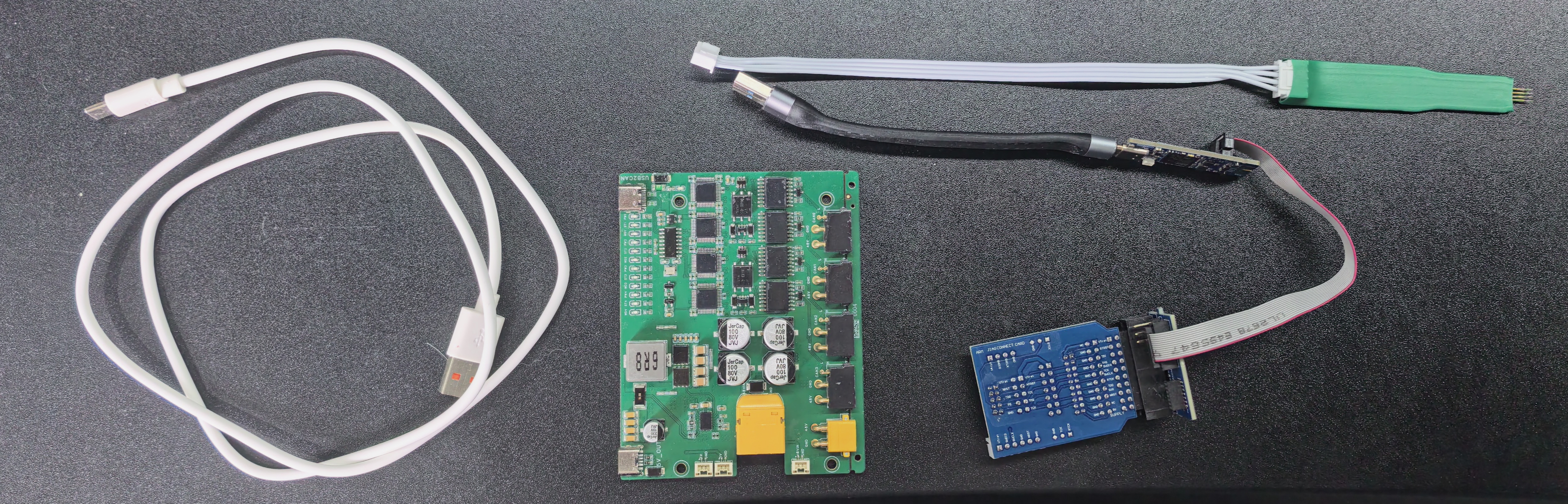
Connect ST-LINK and identify STM32 device#
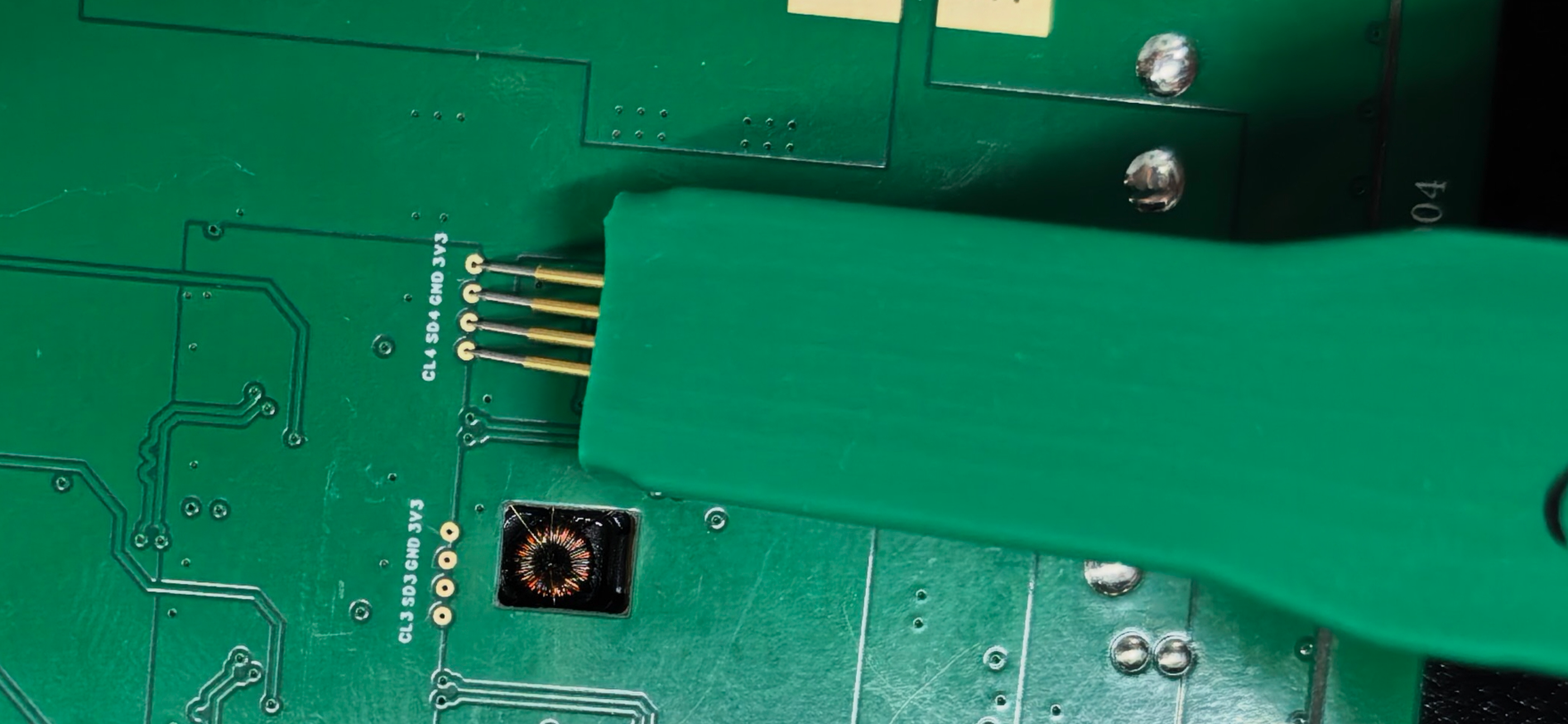
2.1 Hardware Connection#
(Note: The signal sequence of the programmer and the target board is different!)
| ST-LINK | target board |
|---|---|
| GND | SWCLK |
| SWCLK | SWDIO |
| SWDIO | GND |
| 3.3V | VCC |
**The wire sequence must be ensured to be correct; otherwise, programming cannot be performed. **
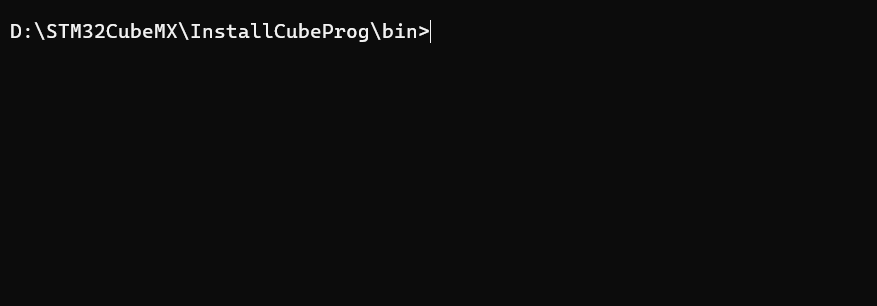
2.2 Open CMD (win - type "cmd" - press Enter), then switch the directory to the STM32CubeProg executable file directory#
Call STM32_Programmer_CLI.exe#
Call STM32_Programmer_CLI.exe, specify the programming port type as SWD, specify the firmware path and firmware file, and specify the programming address (the command can be copied and pasted: STM32_Programmer_CLI.exe -c port=SWD -w D:\Download\roboto_usb2can_v2.0.0_20260209.bin 0x08000000 -v -rst):

burning#
After entering the command for 3, press Enter ( ** during which the hardware connection must remain stable, and the wiring, power supply, and pins must not loosen ** ):
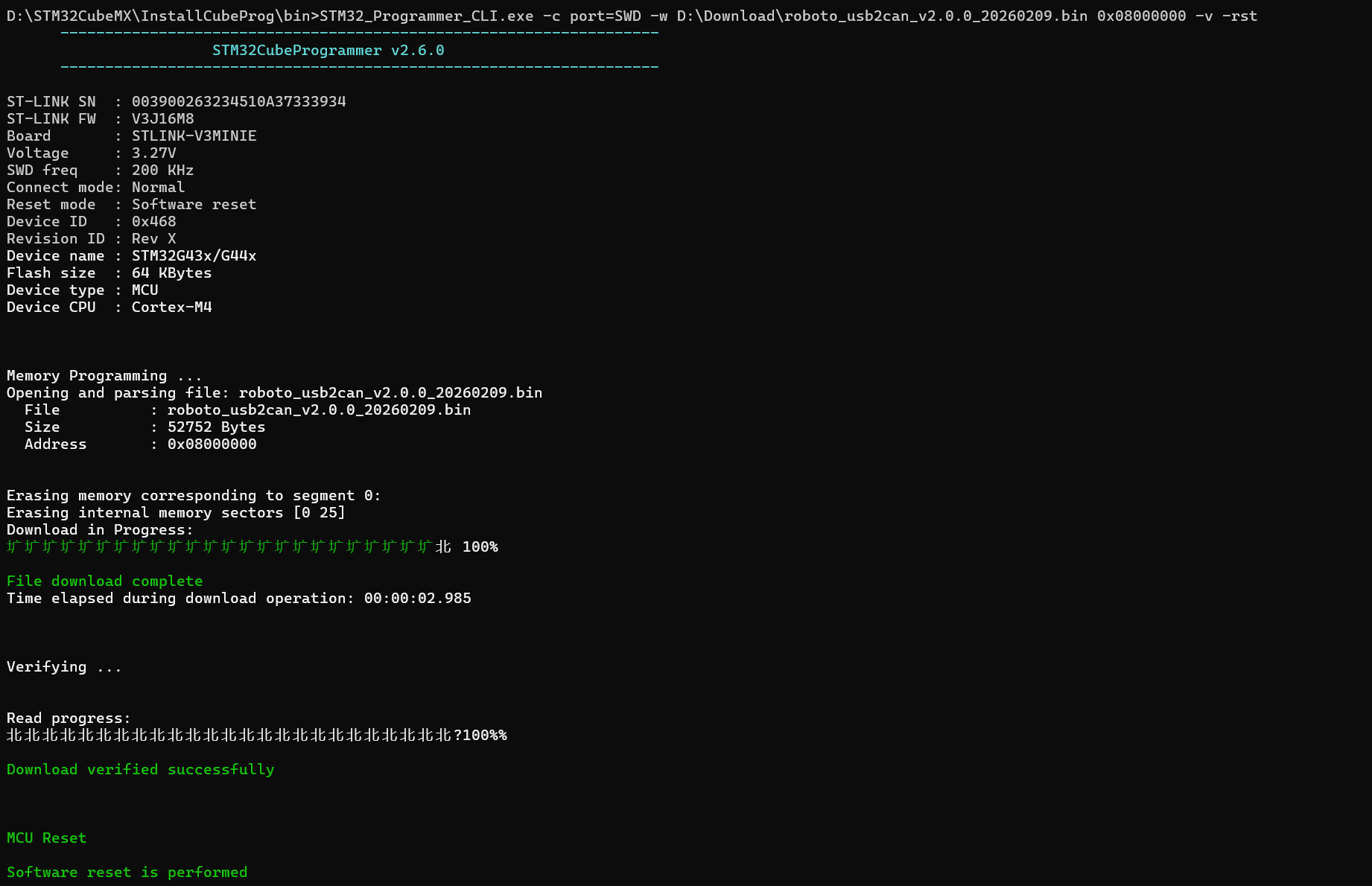
Firmware burning completed#
The three green bars at the bottom of Step 4 indicate that the firmware burning is completed
Download verified successfully
MCU Reset
Software reset is performed
Common Problems and Solutions#
Problem 1: STM32 device not found during connection#
Possible causes: ST-Link driver not installed or hardware wiring error
Solution:
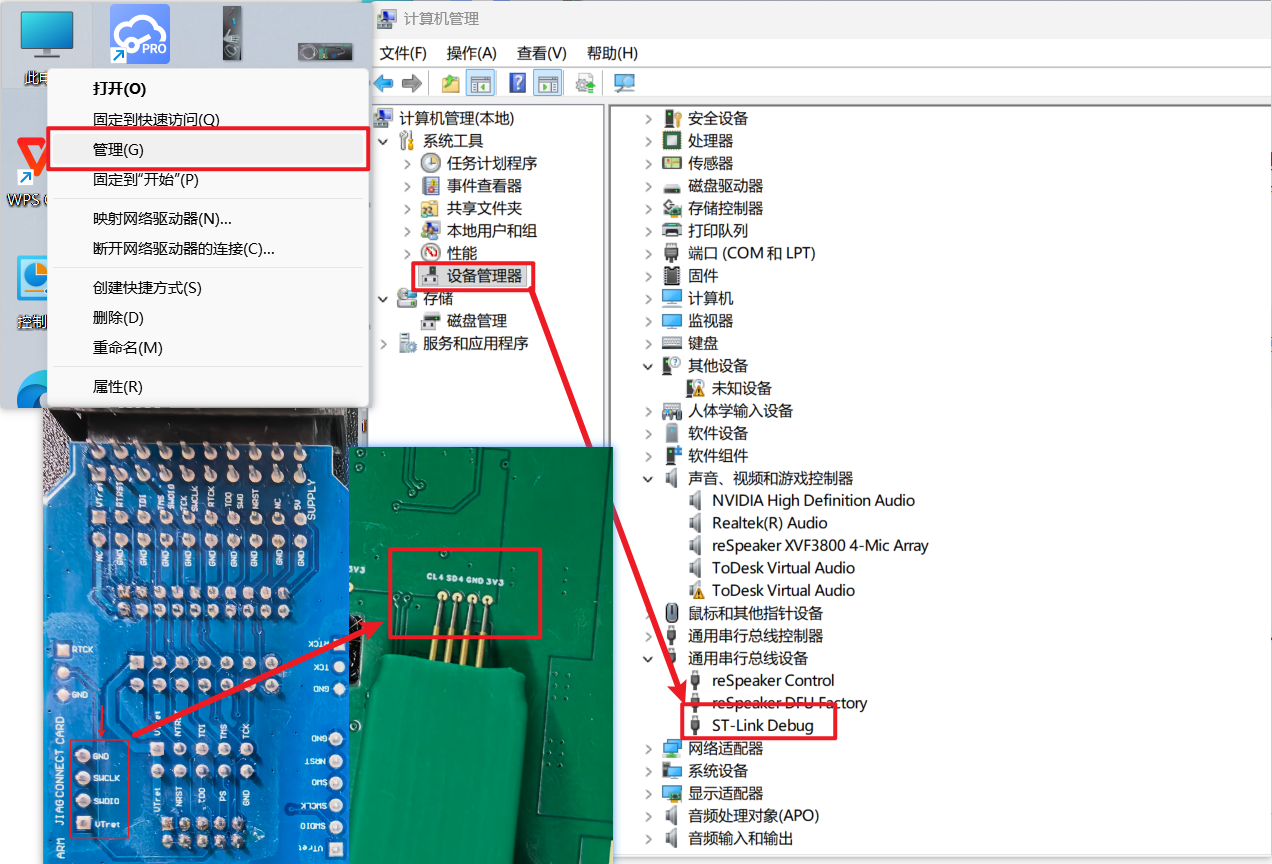
Check if there is an ST-Link device in the Device Manager. If no ST-Link device is recognized, consider the possibility that the ST-Link is damaged or the driver is not installed;
Check if SWDIO, SWCLK, and GND are correctly connected
Question 2: Error occurred while burning the.bin file#
Possible cause: Starting address not set
Solution: Manually fill in Start Address as 0x08000000